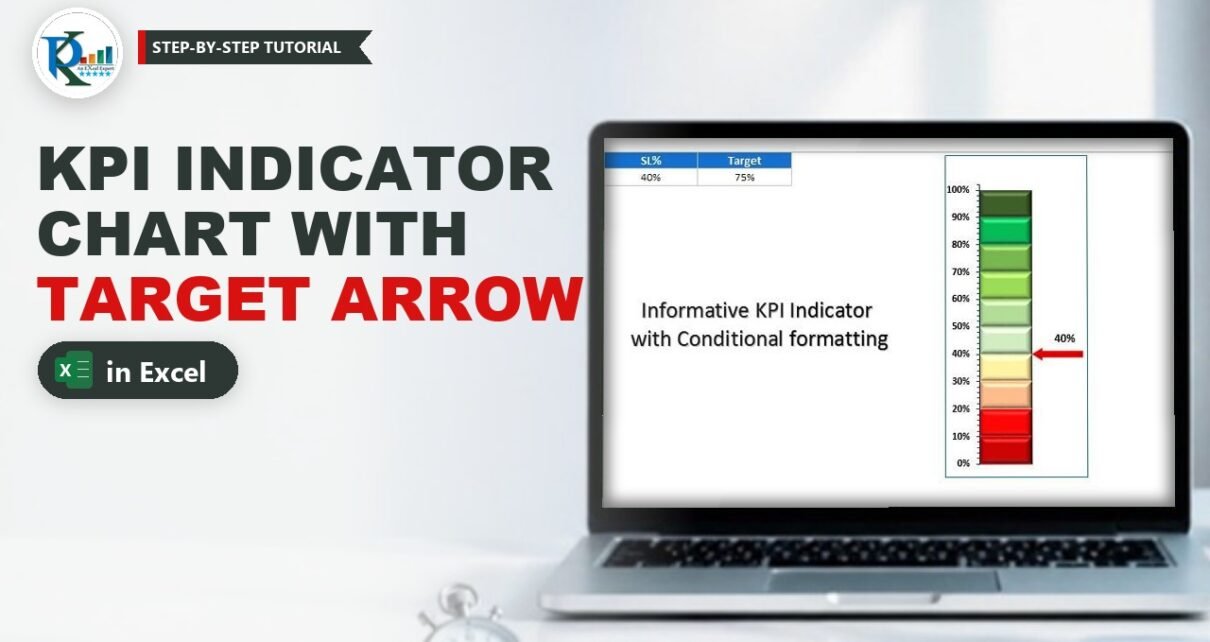
A KPI indicator chart with target in Excel shows where your actual number sits on a red-to-green scale and tells you at a glance whether you hit the goal. This is Version 2 of my Informative KPI Indicator Chart. It keeps the 10-slice RAG scale from Informative KPI Indicator Chart Version 1 and adds a target: when the service level is below the target the arrow turns red, and when it meets or beats the target the arrow turns green. You build it with one stacked column chart, three small IF formulas and two arrow shapes. No VBA, no add-ins.
Watch the Video Tutorial
In the video, PK adds a Slices column and an Indicator column next to the SL% and Target cells, turns them into a stacked column chart, colours the ten slices from dark red to dark green and pastes a red and a green arrow into the indicator bars. If the player does not start here, watch it on YouTube.
What You Will Build
- A vertical scale from 0% to 100% split into ten 10% slices, coloured from dark red at the bottom to dark green at the top.
- An arrow that moves up and down the scale to the exact service level you type in A2.
- A red arrow when the service level is below the target in B2, and a green arrow when it meets or beats the target.
- A data label next to the arrow that always shows the current value.
- A chart that updates by itself the moment you change either input.
Part 1 – Set Up the Inputs and Helper Columns
Step 1: Enter the service level and the target
The video uses two input cells with a blue header row:
A1: SL%      B1: Target
A2: 40%      B2: 75%
A2 is the actual service level and B2 is the target you want to reach. Any percentage KPI works in place of Service Level. Turn off gridlines from View > Gridlines so the finished chart sits on a clean sheet.
Step 2: Add the Slices column
The chart needs two support columns. In C1 type Slices, then enter 10% in each cell from C2 to C11. That gives you ten equal blocks that add up to 100%. Each block becomes one coloured band of the RAG scale.
Step 3: Add the Indicator column
In D1 type Indicator. This column controls where the arrow sits and which colour it shows. The arrow is 5% tall, so the first cell is a spacer that pushes the arrow up to the right height:
D2: =A2-2.5%
D3: =IF(A2<B2,5%,0)
D4: =IF(A2>=B2,5%,0)
With A2 at 40% and B2 at 75%, D2 returns 37.5%, D3 returns 5% and D4 returns 0%. Format D2:D4 as percentages.
How the formulas work
=A2-2.5%is an invisible block that fills the space under the arrow. The arrow is 5% tall, so subtracting half of it (2.5%) makes the middle of the arrow line up exactly with the service level, not its bottom edge.=IF(A2<B2,5%,0)is the red arrow. It is 5% tall only when the actual value is below the target; otherwise it is 0 and disappears.=IF(A2>=B2,5%,0)is the green arrow. It is the exact opposite test, so it shows only when the target is met or beaten.- Because the two IF tests can never be TRUE at the same time, only one arrow is visible at any moment. That is what makes the colour switch on its own.
The video title says “with conditional formatting”, but no Conditional Formatting rule is used. The colour change comes entirely from these two IF formulas feeding separate chart series.
Part 2 – Build the Stacked Column Chart
Step 4: Insert a 2-D stacked column chart
Select the Slices and Indicator columns (C1:D11) and go to Insert > Charts > Column > 2-D Stacked Column.
Step 5: Switch rows and columns
Right-click the chart, choose Select Data, click Switch Row/Column and press OK. Now the chart has two stacked columns: Slices with ten 10% blocks, and Indicator with the spacer, the red block and the green block. Each helper row is now its own series, so every slice can get its own colour.
Step 6: Clean up the chart
- Delete the legend and the horizontal gridlines (select each and press Delete).
- Delete the horizontal (category) axis, so the words Slices and Indicator disappear.
- Make the chart narrow and tall.
Step 7: Fix the vertical axis
Right-click the vertical axis and choose Format Axis. Set:
- Minimum: 0
- Maximum: 1.03
- Major unit: 0.1
- Tick marks: Major type Outside, Minor type Outside
Why 1.03 and not 1? When the service level is 100%, the spacer is 97.5% and the arrow runs from 97.5% to 102.5%. With a maximum of 1 only half the arrow would show. A maximum of 1.03 leaves room for the whole arrow at the top of the scale.
Step 8: Remove the gap
Right-click any block, open Format Data Series and change Gap Width from 150% to 0%. The Slices column now touches the Indicator column, so the arrow will sit right against the scale.
Part 3 – Colour the KPI Indicator Chart with Target
Step 9: Hide the spacer
Click the bottom block of the Indicator column (the 37.5% spacer from D2) and set Home > Fill Color > No Fill. The block is still there and still pushes the arrow up, but you cannot see it.
Step 10: Colour the ten slices
Click the Slices column, then click once more on the bottom slice so only that point is selected. Fill it with dark red. Work your way up: red, a lighter red, a light orange-red, light yellow, then light greens and finally darker greens at the top.
Step 11: Add a bevel to every slice
Select the first slice, open Format > Shape Effects > Bevel and choose Circle. Then click the next slice and press F4. F4 repeats the last action, so you can bevel all ten slices in a few seconds.
Part 4 – Add the Red and Green Arrows
Step 12: Draw the arrows
Go to Insert > Shapes and pick the Left Arrow. Click on the sheet to draw it. Fill it with green, set Shape Outline to No Outline, apply Shape Effects > Preset > Preset 2 and set Shape Effects > Shadow to No Shadow. Copy the arrow, paste a second one and fill that copy with red.
Step 13: Paste the arrows into the chart
Copy the red arrow. Then click the red indicator block in the chart (from D3) so only that point is selected, and press Ctrl+V. Excel fills the block with the arrow picture. With A2 at 40% the red block is visible, so you can do this right away.
To reach the green block, type a value above the target in A2, for example 80%. Now D4 is 5% and the green block appears. Copy the green arrow, select that block and paste. Change A2 to 60% and the arrow turns red; change it to 75% and it turns green, because 75% is equal to the target.
Step 14: Link a data label to A2
Right-click the arrow and choose Add Data Labels. Click the label once to select it, click in the formula bar, type = and click cell A2, then press Enter. The formula bar shows a reference such as =Sheet2!$A$2. Make the label font black and drag it just above the arrow. Now the label always shows the actual service level instead of the 5% block size.
Test it the way PK does in the video: 35% gives a red arrow near the bottom, 72% is still red because it is under 75%, and 82% gives a green arrow near the top.
Version 1 vs Version 2
Both versions use the same ten 10% RAG slices. Version 1 shows the position on the scale only. Version 2 adds the Target cell and the two IF formulas, so the arrow also tells you pass or fail by colour. Use Version 1 when there is no fixed goal, and Version 2 when the team works to a target.
Common Errors and Fixes
- The arrow is cut off at 100%. The axis maximum is still 1 (or Auto). Set it to 1.03 as in Step 7.
- The chart shows ten thin columns instead of two stacked columns. You skipped Switch Row/Column. Open Select Data and switch it.
- The arrow sits slightly above the value. D2 is missing the minus 2.5% part, so the bottom of the arrow, not its middle, is on the value.
- Both arrows or no arrow appear. Check that D3 uses less than and D4 uses greater than or equal to, and that both compare A2 with B2.
Tips
- Point the input cell to a formula, such as a service level calculated from your call data, and the chart becomes a live dashboard widget.
- If your arrow is taller or shorter than 5%, change the 5% in D3 and D4 and subtract half of the new size in D2.
- Read Microsoft’s guide to the IF function if you want to add a third state, such as amber for close to target. (Addition, not from the video.)
Want It Ready-Made?
If you would rather start from the finished, formatted file, the Informative KPI Indicator Chart Version-2 is available on NextGenTemplates.com, and you can browse more Excel charts and visualization templates. To build charts like this inside complete dashboards, see Excel Pivot Tables and Dashboards on NextGenTemplates Academy.
Related Tutorials
- Informative KPI Indicator Chart Version 1
- 3D KPI Indicator in Excel
- 5 KPI Cylinder Chart in Excel
- Multiple KPIs Visualization in Excel
- RAG Colours in a Progress Circle Chart
Frequently Asked Questions
How does the arrow change colour without conditional formatting?
Two helper cells hold the red and the green arrow. Each uses an IF test against the target, so one returns 5% and the other returns 0. The arrow with 0 has no height and is invisible, so you only ever see one colour.
Why is the axis maximum 1.03 instead of 100%?
The arrow is 5% tall and is centred on the value. At a 100% service level it reaches 102.5%, so the axis needs a little headroom or the top half of the arrow is cut off.
Can I use this chart for KPIs other than service level?
Yes. Any KPI measured as a percentage from 0% to 100% works. Change the label in A1, type your value in A2 and your goal in B2.
What is the difference between Version 1 and Version 2?
Version 1 shows where the value sits on the red to green scale. Version 2 adds a target cell, and the arrow turns red below the target and green when the target is met.
How do I show the real value next to the arrow?
Add a data label to the arrow, select the label, type an equals sign in the formula bar and click the service level cell. The label is then linked to that cell.
About the Author
PK is a Microsoft Excel expert and trainer and the founder of PK: An Excel Expert and NextGenTemplates.com. He has been teaching Excel, VBA, Power Query and Power BI since 2016 on his YouTube channel.
Conclusion
A KPI indicator chart with target in Excel needs only a 10-slice stacked column, a spacer formula that centres the arrow, and two opposite IF tests that switch the arrow between red and green. Set the axis maximum to 1.03, remove the gap, colour the slices from red to green and paste your arrows into the indicator blocks. Then link the label to A2 and the chart tells your team both where they stand and whether they hit the goal.